
Set up MorphCam in your calls
The same guide you'll find in the app under Use in calls. A couple of minutes with the Windows app, a few more with the web app on a Mac.
Save your credits: do all the setup below with Preview first. Preview does not use any credits. While Preview is on, the AI section shows a black screen with "Connecting...". That is normal, and it is all you need for the setup. When everything works, stop Preview, choose your character and start.
Use either the MorphCam desktop app or the web app, not both at the same time. Your camera can only be used by one of them at once.
How to use MorphCam in your calls
The easiest way is MorphCam Camera. It comes with the MorphCam Windows app, so there is nothing else to install. On a Mac, or in the web app, use SplitCam (easiest) or OBS.
Windows app
-
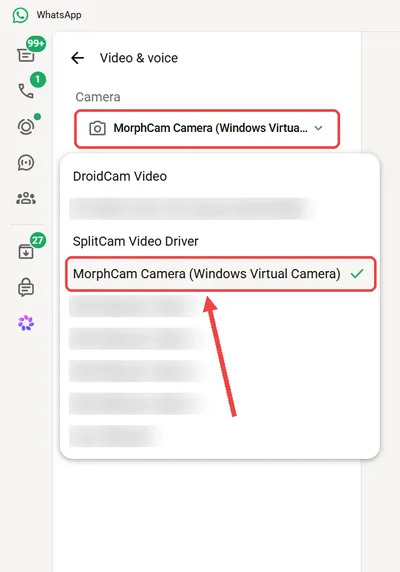
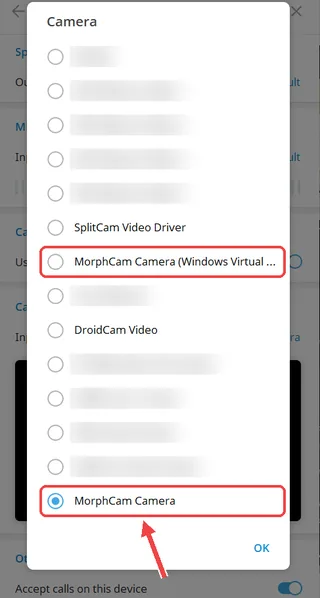
Choose MorphCam Camera in your call app
Open the camera settings of your call app and choose:
- Windows 11: MorphCam Camera (Windows Virtual Camera).
- Windows 10: MorphCam Camera.
If the first one does not show a picture in an app, try the other one. WhatsApp only shows MorphCam Camera (Windows Virtual Camera), so it needs Windows 11.
Where to find the camera settings:
- Telegram: Settings, then Speakers and Camera, then Camera.
- Signal: Settings, then Calls, then Video.
- WhatsApp: Settings, then the calls/video settings, then Camera.
- Zoom, Teams and Google Meet: the video or camera settings.
-
Start your AI in MorphCam
Upload your picture or type your prompt, then click Start.
Until your AI face is live, your call shows a black screen that says "Connecting...", the same as MorphCam's AI area. Your real camera and Preview are never shown in your call.
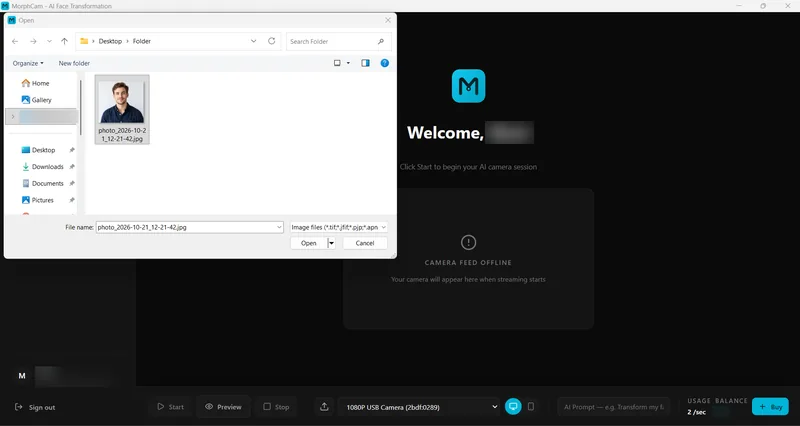

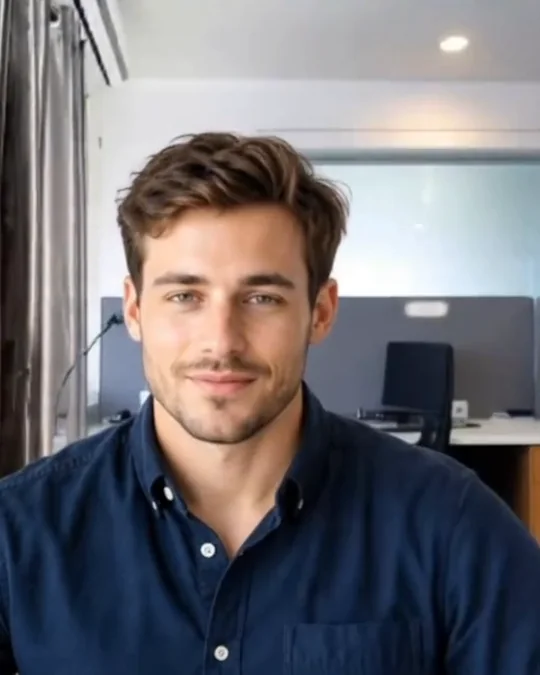 Character photo you upload
Live on camera: your movements
Your real camera: hidden
Character photo you upload
Live on camera: your movements
Your real camera: hidden
Drag to compare the photo you upload with the live result. -
Make your call
Start your call. You can minimise MorphCam or let your call app cover it. Your AI face keeps going.
When you click Stop, your call goes back to the black "Connecting..." screen.
Your AI character, live. This is the kind of picture the person you call sees.
Your own preview may look mirrored (back to front) in WhatsApp and some other apps. That is only how the app shows you to yourself. The person you call sees you the right way round.
Web app (Mac or Windows) · or the Windows app
-
Install MorphCam Web app only
In Chrome or Edge, click Install when MorphCam offers it (or open the browser menu and choose Install this site as an app). Then always open MorphCam from its own window. This gives you full screen with your taskbar still showing, and no browser tabs in your video.
On a Mac with Safari, choose File, then Add to Dock.
-
Install SplitCam
Download SplitCam from splitcam.com and install it.
-
Start Preview in MorphCam
Open MorphCam (the desktop app, or app.usemorphcam.com in Chrome or Edge). Start Preview, then click "Enter full screen". Your taskbar (Windows) or Dock (Mac) stays at the bottom, so you can still open SplitCam.
-
Add MorphCam to SplitCam
Open SplitCam. Next to Media Layers, click the + button. Scroll down to Capture Display and click it, then click Capture Window. Pick the MorphCam window:
- Desktop app: choose "MorphCam - AI Face Transformation".
- Web app: choose the MorphCam window of your browser, for example "MorphCam - Personal - Microsoft Edge" or "MorphCam - Google Chrome". If you have many tabs open, the name may also mention other pages. Pick the one that starts with MorphCam.
Click OK. You should now see MorphCam inside SplitCam.
-
Choose SplitCam in your call app
Open the settings of your call app and choose SplitCam Video Driver as your camera. If you do not see a picture, choose SplitCam Virtual Camera instead.
- Telegram: Settings, then Speakers and Camera, then Camera.
- Signal: Settings, then Calls, then Video.
- WhatsApp: Settings, then the calls/video settings, then Camera.
- Zoom and Google Meet: the video or camera settings.
-
Start your AI and call
Go back to MorphCam and stop Preview. Upload your picture or type your prompt, click Start, then click "Enter full screen". Now start your call. The person you call sees your AI face.
Tip for your next call: in SplitCam, click the three dots on your MorphCam layer and delete it, then add it again (the "Add MorphCam to SplitCam" step) before you start. This keeps the picture the right size.
Web app (Mac or Windows) · or the Windows app
-
Install MorphCam Web app only
In Chrome or Edge, click Install when MorphCam offers it (or open the browser menu and choose Install this site as an app). Then always open MorphCam from its own window. This gives you full screen with your taskbar still showing, and no browser tabs in your video.
On a Mac with Safari, choose File, then Add to Dock.
-
Install OBS
Download OBS Studio (version 29 or newer) from obsproject.com and install it.
-
Windows only: install DroidCam
Some apps, like WhatsApp, do not show the normal OBS camera, so on Windows you also need DroidCam. Go to https://github.com/dev47apps/droidcam-obs-virtual-output/releases and, from the newest release, download and install these two files:
- DroidCam.Drivers (the file name starts with DroidCam.Drivers and ends with .exe)
- DroidCam.OBSVirtualOut.Plugin (the file name starts with DroidCam.OBSVirtualOut.Plugin and ends with .exe)
Then restart OBS. On a Mac you do not need DroidCam.
-
Start Preview in MorphCam
Start Preview and click "Enter full screen", the same as for SplitCam.
-
Add MorphCam to OBS
Windows: in OBS, under Sources, click +, choose Window Capture, choose Create new, and click OK. In Window, select the MorphCam window:
- Desktop app: choose "[MorphCam AI Face Transformation.exe]".
- Web app: choose the MorphCam page of your browser (Microsoft Edge or Google Chrome).
Set Capture Method to "Windows Graphics Capture (Windows 10 1903 and up)". Click OK.
On a Mac, under Sources click +, choose macOS Screen Capture, set it to Window, and pick the MorphCam window. Leave the other options as they are.
-
Make it fill the screen
Right-click the MorphCam source, choose Transform, then Fit to Screen.
-
Turn on the camera
Windows: click Tools, then DroidCam Virtual Output, and click Active. Make sure Active shows a tick.
Mac: click Start Virtual Camera.
-
Choose the OBS camera in your call app
In your call app's camera settings (see "Choose SplitCam in your call app" for where to find them), choose OBS Virtual Camera. If you do not see it, choose Droidcam Video.
-
Start your AI and call
Go back to MorphCam and stop Preview. Upload your picture or type your prompt, click Start, then click "Enter full screen". Check that your AI face shows in OBS, then start your call.
Important (web app only)
- Do not make WhatsApp, Zoom, SplitCam or OBS fill the whole screen. Keep them a little smaller so part of MorphCam can still be seen. If MorphCam is covered completely, your video will stop moving in the call.
- Do not minimize MorphCam.
- If you see a yellow message saying your video is hidden, move the other window a little so MorphCam can be seen again.
- Using Windows? The MorphCam desktop app does not have this problem, so we recommend it.
Use MorphCam on Mac (or in any browser)
-
Open the web app
Open app.usemorphcam.com in Chrome, Edge or Safari, and sign in with your MorphCam account (or create one).
-
Install it as an app
In Chrome or Edge, click Install when offered (or open the browser menu, then Install this site as an app). In Safari, choose File, then Add to Dock.
-
Preview in full screen
Open MorphCam from its own window, start Preview and click Enter full screen.
-
Bring it into your calls
Follow the SplitCam steps (easiest, works with WhatsApp) or the OBS steps above.
Windows users can keep using the desktop app, or use the browser version.
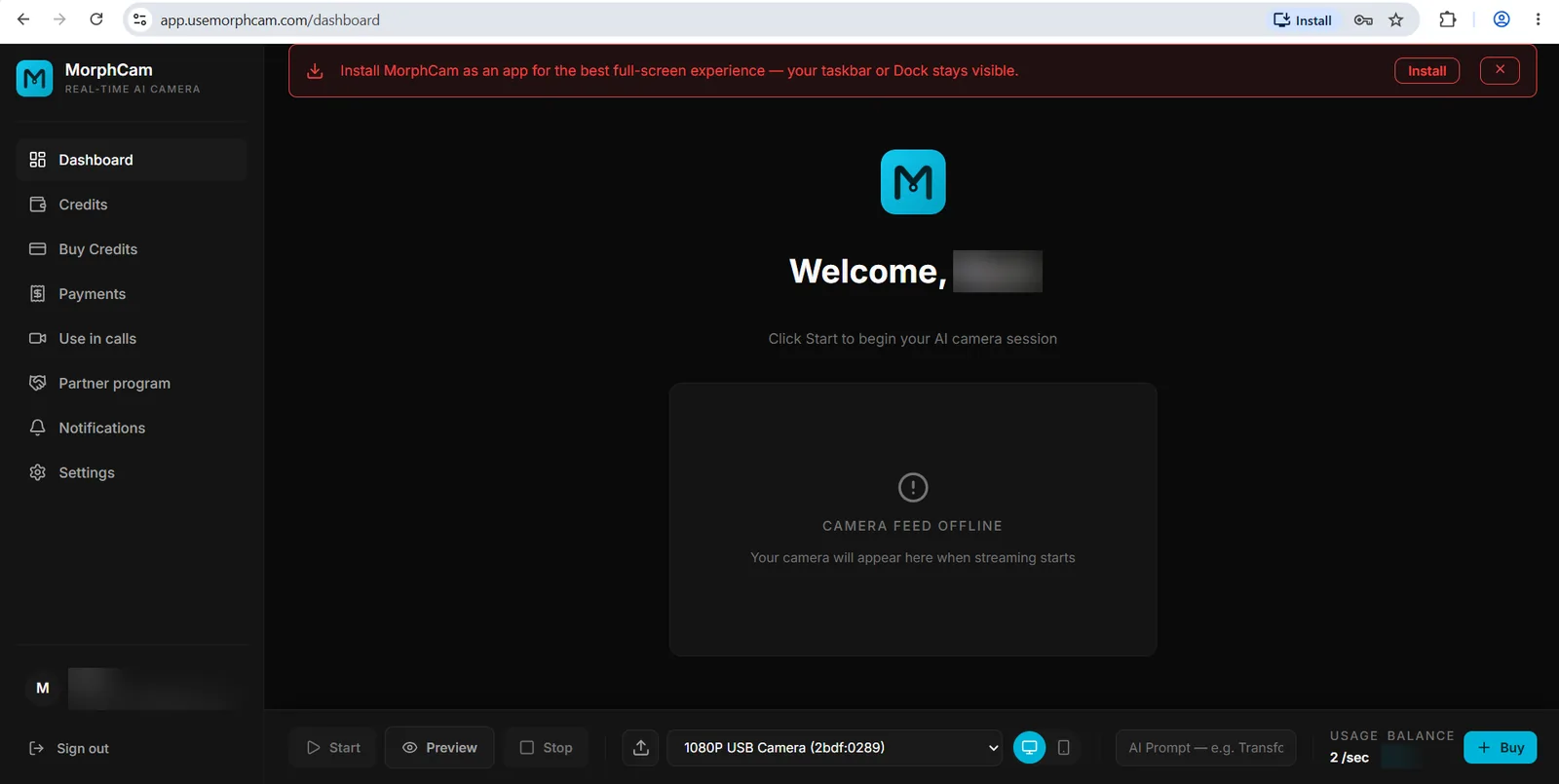
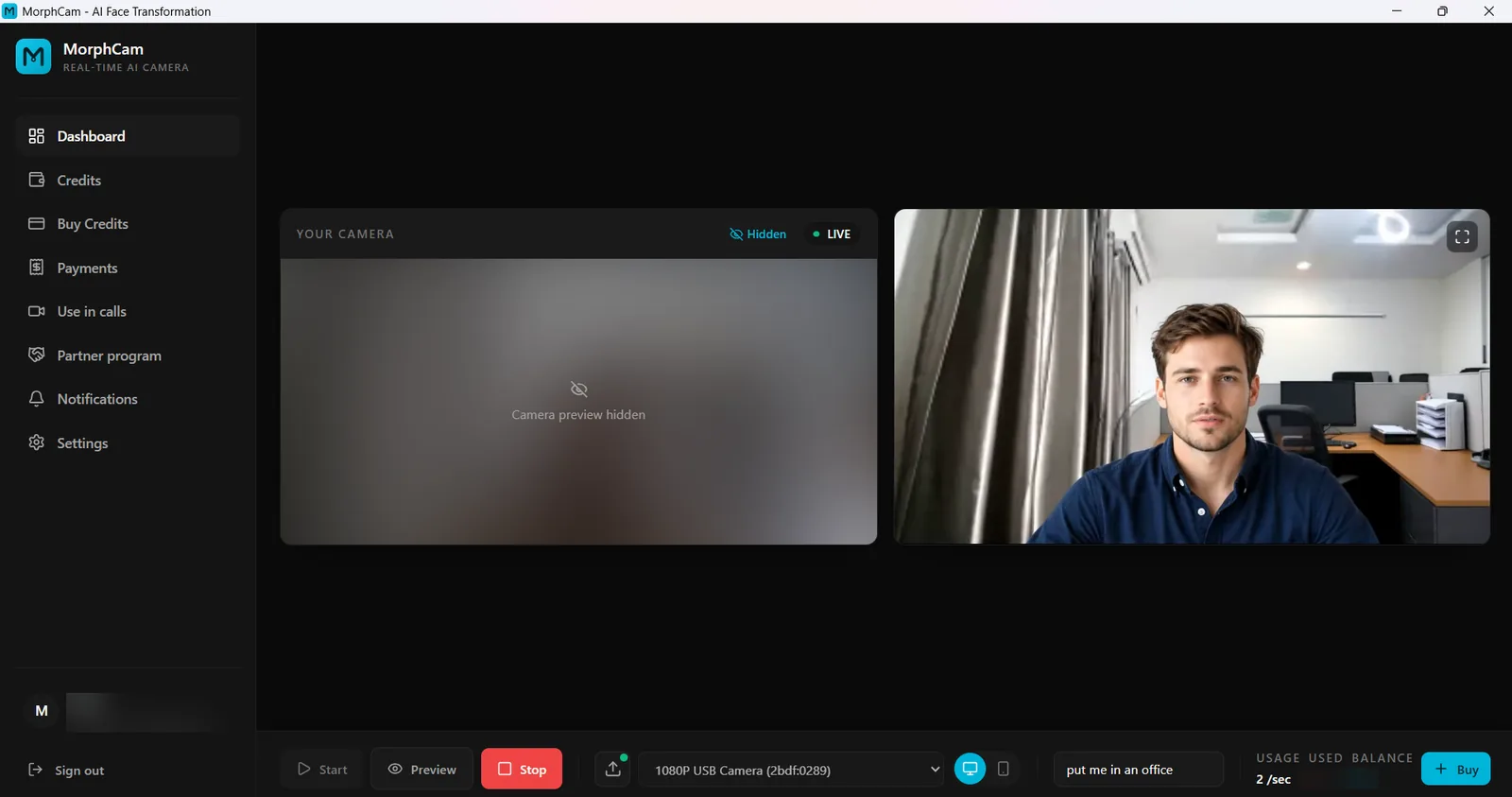
Hide my camera preview
Turn on Hide my camera preview and MorphCam stops showing your real camera on screen. Your AI character keeps running as normal. It's ideal when you stream or record your screen.
Your call never receives your real camera either: it only gets your AI character.
Something not working?
MorphCam Camera does not appear in my call app
Make sure you have the latest MorphCam Windows app. Open Use in calls in the app: if it says MorphCam Camera is not set up on this computer yet, click the button and choose Yes when Windows asks. Then close and reopen your call app.
My call shows a black "Connecting..." screen
That is normal until your AI face is live. Upload your picture or type your prompt in MorphCam and click Start. During Preview the AI area also shows "Connecting...", and your real camera and Preview are never shown in your call.
WhatsApp does not list MorphCam Camera
WhatsApp only shows MorphCam Camera (Windows Virtual Camera), so it needs Windows 11. On Windows 10, use SplitCam instead.
My picture looks mirrored
Your own preview may look mirrored (back to front) in WhatsApp and some other apps. That is only how the app shows you to yourself. The person you call sees you the right way round.
The video stops moving in my call (web app)
Do not make WhatsApp, Zoom, SplitCam or OBS fill the whole screen, and do not minimize MorphCam. Keep part of the MorphCam window visible. On Windows, the desktop app does not have this problem, so we recommend it.
Still stuck?
Our Telegram channel has a video that walks through the whole setup. Or message us and a real person will help.