
AI camera on Mac: using the MorphCam web app
MorphCam, the real-time AI character camera, runs in your browser on a Mac. No download is needed. Install it as an app, then bring it into your calls with SplitCam or OBS.
In short
- Open app.usemorphcam.com in Chrome, Edge or Safari and sign in.
- Install it as an app so it opens in its own window.
- Use SplitCam (easiest) or OBS to turn the MorphCam window into a camera for WhatsApp, Telegram, Zoom or Meet.
Step 1: open the web app
Go to app.usemorphcam.com in Chrome, Edge or Safari, and sign in with your MorphCam account, or create one free. It's the same account and the same credits as the Windows app.
Step 2: install it as an app
- Chrome or Edge: click Install when MorphCam offers it, or open the browser menu and choose Install this site as an app.
- Safari: choose File, then Add to Dock.
Always open MorphCam from its own window. You get full screen with your Dock still visible, and no browser tabs in your video.
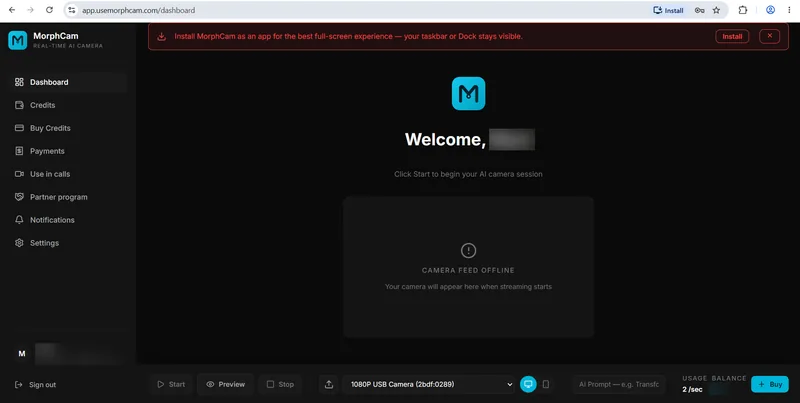
Step 3: preview in full screen
Start Preview (it doesn't use credits) and click Enter full screen.
Step 4: bring it into your calls
With SplitCam (easiest)
- Install SplitCam from splitcam.com.
- Next to Media Layers, click +, then Capture Display, then Capture Window, and pick the MorphCam window.
- In your call app, choose SplitCam Video Driver as your camera (or SplitCam Virtual Camera if there's no picture).
With OBS
- Install OBS Studio (version 29 or newer) from obsproject.com.
- Under Sources, click +, choose macOS Screen Capture, set it to Window and pick the MorphCam window.
- Right-click the source, choose Transform, then Fit to Screen. Then click Start Virtual Camera.
- In your call app, choose OBS Virtual Camera.
Keep MorphCam visible. In the web app, don't let your call app, SplitCam or OBS cover the MorphCam window completely, and don't minimise it. If MorphCam is fully covered, your video stops moving in the call.
On Windows? There's an easier way
The Windows app includes the built-in MorphCam Camera, so you don't need SplitCam or OBS. You can also minimise it during calls. See MorphCam Camera vs SplitCam and OBS.
Mac questions
Is there a MorphCam app for Mac?
MorphCam runs on Mac as a web app at app.usemorphcam.com in Chrome, Edge or Safari. You can install it as an app so it opens in its own window.
Can I use MorphCam in WhatsApp on a Mac?
Yes, with SplitCam: capture the MorphCam window in SplitCam, then choose SplitCam Video Driver as your camera in WhatsApp Desktop.
Why does my video freeze in the call?
In the web app, MorphCam must stay partly visible. Don't minimise it or cover it completely with other windows.
Is my account the same as on Windows?
Yes. Sign in with the same MorphCam account and use the same credits on the web app and the Windows app.