
How to use an AI character camera in WhatsApp video calls
Show up in WhatsApp video calls as an AI character that follows your real movements, with MorphCam, the real-time AI character camera. Here's how, step by step, on Windows and Mac.
In short
- Windows 11: install the MorphCam app, then choose MorphCam Camera (Windows Virtual Camera) as your camera in WhatsApp Desktop. Nothing else to install.
- Windows 10 or Mac: use the free SplitCam app to bring MorphCam into WhatsApp.
- Always tell the person you're calling that you're using an AI character.
What you need
- WhatsApp Desktop on your computer. MorphCam works with the computer app, not the WhatsApp app on your phone.
- A webcam, or your phone set up as a webcam.
- A free MorphCam account. The camera preview is free; going live uses credits (2 credits per second).
- Windows 11 for the built-in MorphCam Camera. WhatsApp only lists the Windows Virtual Camera version, which needs Windows 11.
On Windows 11: the built-in MorphCam Camera
- Install MorphCam. Download the Windows app, run the installer and sign in.
- Set up with Preview first. Preview doesn't use credits. Upload a character photo or type a prompt.
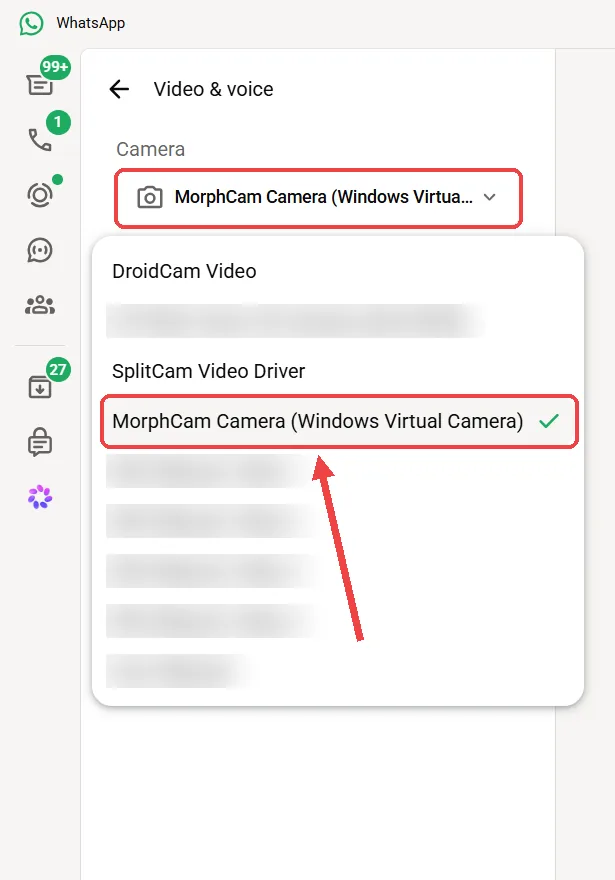
- Pick the camera in WhatsApp. In WhatsApp Desktop, open Settings, then the calls/video settings, then Camera, and choose MorphCam Camera (Windows Virtual Camera).
- Click Start in MorphCam. Until your AI face is live, WhatsApp shows a black "Connecting..." screen. Your real camera is never shown in the call.
- Make your call. You can minimise MorphCam or let WhatsApp cover it. Your AI face keeps going.
On Windows 10 or Mac: use SplitCam
SplitCam is a free program that turns a window on your screen into a camera WhatsApp can use.
- Open MorphCam: the Windows app, or the web app at app.usemorphcam.com on a Mac.
- Install SplitCam from splitcam.com.
- In MorphCam, start Preview and click Enter full screen.
- In SplitCam, add a capture of the MorphCam window (next to Media Layers, click +, then Capture Display, then Capture Window).
- In WhatsApp, choose SplitCam Video Driver as your camera.
The full SplitCam guide has every click, plus tips for keeping the picture the right size.
Tips for a natural-looking call
- Face a window or a lamp. Even light on your face gives the AI the clearest picture to follow.
- Keep your face in the middle of the frame, about an arm's length from the camera.
- Your own preview may look mirrored in WhatsApp. That's only how WhatsApp shows you to yourself; the other person sees you the right way round.
Always disclose it. MorphCam is for fun calls, creators and entertainment. Tell the person you're calling that you're using an AI character. Using MorphCam to deceive, impersonate a real person or commit fraud is banned. Read our rules.
WhatsApp questions
Can I use an AI camera in WhatsApp on my phone?
No. MorphCam works with WhatsApp Desktop on a Windows or Mac computer, not the WhatsApp app on your phone.
Why doesn't WhatsApp show MorphCam Camera on Windows 10?
WhatsApp only lists MorphCam Camera (Windows Virtual Camera), which needs Windows 11. On Windows 10, use SplitCam and choose SplitCam Video Driver in WhatsApp.
Does the other person see my real face?
No. Your real camera and Preview are never shown in the call. Until your AI face is live, the call shows a black "Connecting..." screen.
Do I have to tell people it's AI?
Yes. MorphCam is for fun calls, creators and entertainment, always disclosed as AI. Deceiving or impersonating anyone is banned.
Try it in your next WhatsApp call
Set everything up with the free preview, then go live when you're ready.