
Real-time AI camera for Telegram, Zoom and Google Meet
MorphCam, the real-time AI character camera, shows up as a normal webcam, so any app with a camera setting can use it. Here's where to find that setting in Telegram, Zoom, Google Meet, Microsoft Teams and Signal.
In short
- With the MorphCam Windows app, choose MorphCam Camera (Windows Virtual Camera), or MorphCam Camera on Windows 10, in your call app's camera settings.
- If one of them shows no picture in an app, try the other one.
- On a Mac, use the MorphCam web app with SplitCam or OBS.
Before you start
- Install the MorphCam Windows app and sign in.
- Do your setup with Preview. It doesn't use credits.
- Upload a character photo or type a prompt, then click Start when you're ready to go live.
Where to choose the camera in each app
| App | Where to find the camera setting |
|---|---|
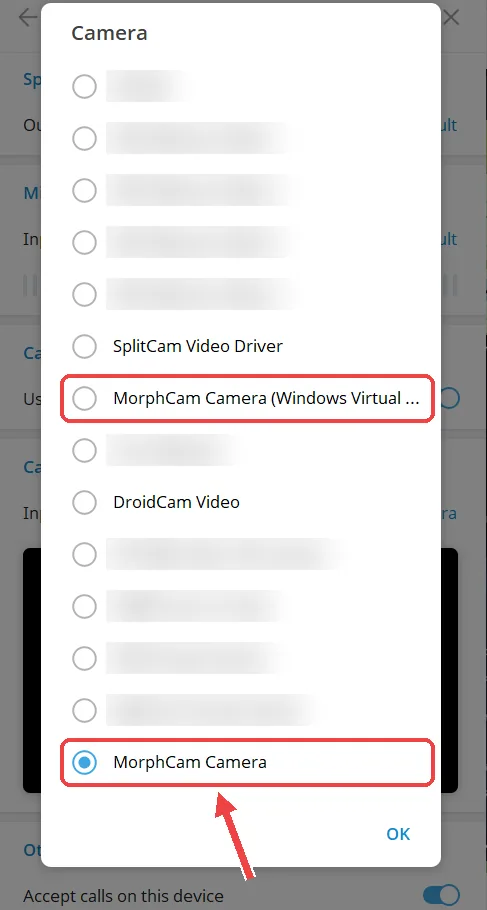
| Telegram Desktop | Settings, then Speakers and Camera, then Camera |
| Zoom | Settings, then Video, then Camera (or the arrow next to the video button during a meeting) |
| Google Meet | Before joining or during the call: the three-dot menu, then Settings, then Video |
| Microsoft Teams | Settings, then Devices (or Video and audio), then Camera |
| Signal Desktop | Settings, then Calls, then Video |
In each one, choose MorphCam Camera (Windows Virtual Camera). On Windows 10, choose MorphCam Camera.
Google Meet in the browser
Meet runs in your browser, so the browser asks for camera permission the first time. Allow it, then pick MorphCam Camera in Meet's video settings. If you use several cameras, pick MorphCam Camera before you join so the right picture shows from the start.
On a Mac
The built-in MorphCam Camera comes with the Windows app. On a Mac, open the MorphCam web app at app.usemorphcam.com, then use SplitCam or OBS to turn it into a camera. Read AI camera on Mac for the full steps.
Troubleshooting
- No MorphCam Camera in the list? Open Use in calls in the MorphCam app. If it says MorphCam Camera isn't set up yet, click the button and choose Yes when Windows asks. Then restart your call app.
- Black "Connecting..." screen? That's normal until your AI face is live. Click Start in MorphCam.
- The camera is busy? Only one program can use your real webcam at a time. Close other apps that use it.
Always disclose it. Tell the people in your call that you're using an AI character. Impersonating a real person, passing identity checks or deceiving anyone is banned. Read our rules.
Telegram, Zoom and Meet questions
Does MorphCam work with Zoom and Google Meet?
Yes. With the MorphCam Windows app, choose MorphCam Camera in Zoom's or Meet's video settings. On a Mac, use the web app with SplitCam or OBS.
Which MorphCam Camera should I choose?
On Windows 11 choose MorphCam Camera (Windows Virtual Camera); on Windows 10 choose MorphCam Camera. If one shows no picture in an app, try the other.
Does it work with Microsoft Teams and Signal?
Yes. Any app that lets you choose a camera can use MorphCam Camera. In Teams, look in Settings, then Devices; in Signal, Settings, then Calls, then Video.
Does it cost anything to test?
No. The camera preview is free. Credits are only used while your AI is live: 2 credits per second, plus a 12-credit start fee each time you click Start.
Bring your AI character to your next call
Free preview. Pay only for live time. Credits never expire.