
How to make faceless videos with an AI character
You can be a real, expressive presence on camera without showing your real face. Here's how creators and educators use MorphCam, the real-time AI character camera, to record and stream as a consistent AI persona.
In short
- Choose one AI character and keep it, so your audience recognises you.
- Turn on Hide my camera preview so your real face never appears in a screen recording.
- Record with any app that uses a webcam, such as OBS or the Windows Camera app, by choosing MorphCam Camera.
- Tell your audience your on-screen persona is an AI character.
Why go faceless with an AI character?
Plenty of people have something worth sharing but don't want their face online: for privacy, safety or simply personal choice. Voice-only videos and stock footage lose the human connection viewers come for. With an AI character you keep your real expressions, timing and personality, and your real face stays yours.
Step 1: choose your character
Upload a character photo or describe the look you want with a prompt. Use an original character, never a real person's face. Pick something you'll be happy to use for months: consistency is what turns a look into a recognisable persona.

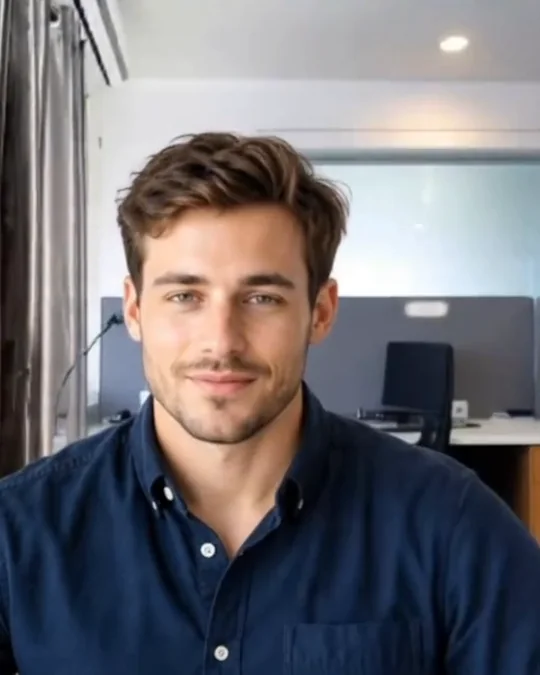 Character photo you upload
Live on camera: your movements
Your real camera: hidden
Character photo you upload
Live on camera: your movements
Your real camera: hidden
Step 2: set up your space
- Even, front-facing light (a window or a lamp behind your camera) gives the AI the clearest picture.
- Sit about an arm's length from the camera, with your face in the middle of the frame.
- Do a test with Preview. It doesn't use credits.
Step 3: record or go live
- In the MorphCam Windows app, turn on Hide my camera preview.
- Click Start.
- In your recording or streaming app, choose MorphCam Camera as the camera. In OBS, add a Video Capture Device. In the Windows Camera app, switch cameras until MorphCam Camera shows.
- Record your video, or go live. See streaming on TikTok LIVE and Twitch.
Step 4: be open about it
Say in your bio or on screen that you appear as an AI character. Audiences are generally fine with personas; what damages trust is pretending. Follow each platform's rules for AI-generated content.
Who this is for: faceless creators, character streamers, online tutors and educators, and anyone who wants to share their work without sharing their face. It's never for deceiving people: see Trust & Safety.
Faceless content questions
Can I make YouTube or TikTok videos with MorphCam?
Yes. Record with any app that uses a webcam, such as OBS, by choosing MorphCam Camera, then upload as usual. Tell viewers you appear as an AI character.
Can I use a celebrity's face?
No. Impersonating any real, identifiable person is banned. Use an original AI character.
Will my real face show in screen recordings?
Not with Hide my camera preview turned on: MorphCam then never shows your real camera on screen.
What does it cost?
The camera preview is free. Live time uses credits: 2 credits per second, plus a 12-credit start fee each time you click Start. Packages start at $18 for 1,000 credits.
Create your AI persona
Try your character with the free preview.